

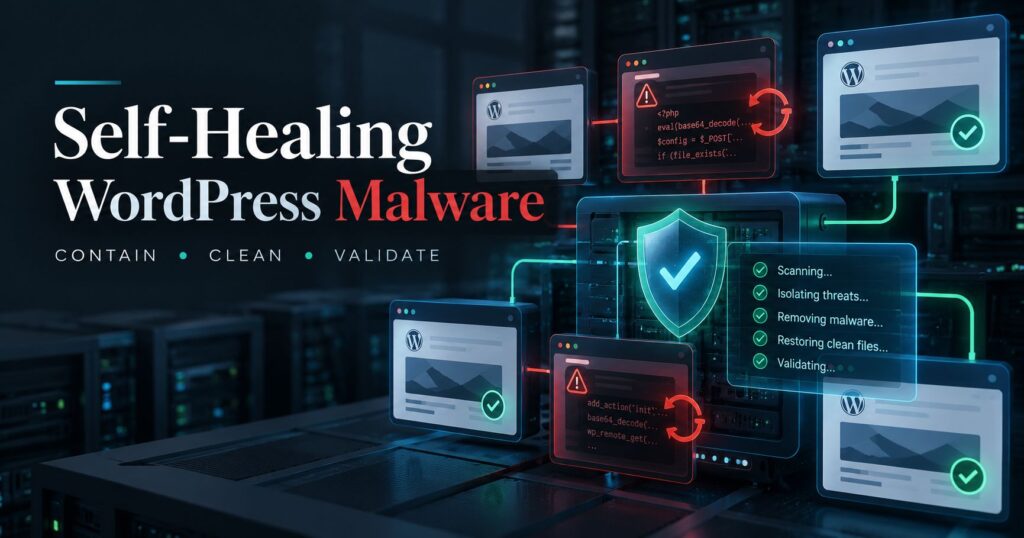
A practical containment, cleanup, and validation runbook for multi-site WordPress hosting—without relying on “delete the bad plugin and hope.”
The problem: malware that rebuilds itself
Some WordPress infections are easy to misunderstand because the visible malicious file is not the actual persistence mechanism.
You delete a suspicious plugin or MU-plugin. It disappears. A few seconds later—or after the next WordPress request—it comes back.
This happens because the infection is distributed across several layers:
- Malicious PHP loaders
- Injected code inside legitimate themes or drop-ins
- Database options containing encoded payloads
- WordPress cron events
- Rogue administrator accounts
- Hidden lock and state files
- Multiple infected WordPress installations sharing one hosting account
In the incident behind this article, the hosting account contained many separate WordPress installations. Cleaning only one site would not have worked: another compromised installation could have recreated the malware or provided the attacker with continued account-level access.
This guide explains the defensive process used to contain, preserve, clean, rebuild, and validate the account.
These procedures are destructive if used incorrectly. Take verified filesystem and database backups first. If you are not comfortable with SSH, SQL, PHP, and WP-CLI, involve your hosting provider or an incident-response professional.
1. Understand the scope before deleting anything
On shared hosting, one compromised WordPress site should be treated as a possible account-wide incident.
Attackers may move between sites when:
- Every website runs under the same Unix account
- Directories share the same ownership and permissions
- Multiple sites reuse administrator passwords
- Database credentials are readable from other installations
- One vulnerable plugin exists across several sites
- A malicious PHP process can write into sibling directories
Start by locating every WordPress configuration file:
find /home/ACCOUNT/public_html \
  -type f -name wp-config.php -print
Record the site directory, database name and table prefix for each installation:
wp --path="/home/ACCOUNT/public_html/example" \
  config get DB_NAME --type=constant

wp --path="/home/ACCOUNT/public_html/example" \
  config get table_prefix --type=variable
Do not assume that each site uses a separate database. Two installations may share one database or use different prefixes in the same database.
Create an inventory before making changes.
2. Contain every site simultaneously
A self-healing infection must be prevented from executing while it is being removed.
Stopping only the visibly infected site is insufficient. Another site in the same account may still execute the loader.
A temporary Apache containment block can be placed at the beginning of each site’s .htaccess:
# BEGIN INCIDENT CONTAINMENT
<IfModule mod_authz_core.c>
    Require all denied
</IfModule>

<IfModule !mod_authz_core.c>
    Order allow,deny
    Deny from all
</IfModule>
# END INCIDENT CONTAINMENT
Before changing .htaccess, preserve the original:
cp -a "/path/to/site/.htaccess" \
  "/private/incident-backup/site.htaccess"
The evidence directory should be outside public_html and inaccessible through the web server:
mkdir -p /home/ACCOUNT/incident-evidence
chmod 700 /home/ACCOUNT/incident-evidence
If the account permits it, terminate PHP workers owned by the hosting user:
pkill -x php 2>/dev/null || true
pkill -x lsphp 2>/dev/null || true
pkill -x php-cgi 2>/dev/null || true
Verify containment using cache-busting URLs. A CDN may continue serving cached 200 responses even when the origin is correctly blocked.
Test the origin directly where possible:
curl -k \
  --resolve example.com:443:ORIGIN_IP \
  "https://example.com/?incident-test=$(date +%s)" \
  -I
The CDN result and the origin result are not necessarily the same.
3. Preserve evidence before cleanup
Evidence is useful for:
- Identifying the persistence mechanism
- Determining which administrator accounts were added
- Finding related infections on other sites
- Demonstrating what was removed
- Recovering legitimate code accidentally affected during cleanup
- Providing samples to the hosting provider or security vendor
Preserve suspicious files with their paths, timestamps and hashes.
For an individual file:
sha256sum suspicious-file.php
stat suspicious-file.php
For a collection:
tar -czf suspect-files.tar.gz \
  --files-from=suspect-files.txt

sha256sum suspect-files.tar.gz
chmod 600 suspect-files.tar.gz
Export every unique WordPress database:
wp --path="/path/to/site" \
  db export "/private/incident-backup/database.sql"

gzip "/private/incident-backup/database.sql"
sha256sum "/private/incident-backup/database.sql.gz"
Do not store database dumps or malware archives inside a web-accessible directory.
4. Search beyond the obvious malicious plugin
One indicator associated with this campaign was a loader using names related to:
retro-balancer-plusRelated persistence artifacts may include:
retro-balancer-plus.php
.rd_retro-balancer-plus
.q_retro-balancer-plus
.sd_retro-balancer-plus
Search for filenames and content:
find /home/ACCOUNT/public_html \
  \( -path '*retro-balancer-plus*' \
  -o -name '.rd_retro-balancer-plus' \
  -o -name '.q_retro-balancer-plus' \
  -o -name '.sd_retro-balancer-plus' \) \
  -print
Search PHP and configuration files:
find /home/ACCOUNT/public_html \
  -type f \
  \( -name '*.php' -o -name '.htaccess' -o -name '.user.ini' \) \
  -print0 |
xargs -0 grep -InE \
  'retro-balancer-plus|SC_(TH|DB|ADV)_(BEGIN|END)|sc_payload'
Exclude known security-plugin signature databases such as wflogs when they produce false positives. Those files may contain malware strings as detection rules rather than executable infections.
Search legitimate themes and drop-ins
The loader may be injected into otherwise legitimate files, including:
wp-content/themes/.../functions.php
wp-content/db.php
wp-content/object-cache.php
wp-content/advanced-cache.php
A particularly important lesson from this cleanup was that marker formatting varied between malware versions.
For example:
/* SC_TH_BEGIN */and:
/* SC_TH_BEGIN:5.1.2:identifier */are not matched by the same overly strict expression.
Searching only for an exact closing comment such as SC_TH_BEGIN */ can miss the colon-delimited version. Search for the marker prefix instead:
grep -RInE \
  'SC_TH_BEGIN|SC_DB_BEGIN|SC_ADV_BEGIN' \
  /home/ACCOUNT/public_html
Do not automatically delete an entire legitimate theme file because it contains an injected block. Preserve the original, remove only the clearly bounded malicious section, and lint the result:
php -l functions.phpIf syntax validation fails, do not deploy the modified file.
5. Inspect WordPress database persistence
Deleting the PHP loader is not enough. The malware may store reconstruction instructions in wp_options.
Look for known prefixes and state names:
SELECT option_name, LENGTH(option_value), autoload
FROM wp_options
WHERE option_name REGEXP '^(sc_|_transient_sc_|_site_transient_sc_)';
Also inspect unusually short hexadecimal option names:
SELECT option_name, LENGTH(option_value), autoload
FROM wp_options
WHERE option_name REGEXP '^[a-f0-9]{8,12}$'
ORDER BY option_name;
This is important because small state values can be just as dangerous as large encoded payloads. In this incident, removing only large suspicious values did not fully stop regeneration. Small path-derived options remained and allowed the loader to reconstruct itself.
However, do not blindly apply this SQL to an unrelated database. A hexadecimal-looking option name is an indicator, not universal proof. Compare:
- The same option names across infected databases
- Their sizes and autoload settings
- Whether clean installations contain them
- Whether the names correspond to known malware derivation formulas
- Whether deleting them stops regeneration
Back up the database before deleting options.
6. Audit WordPress cron correctly
WordPress stores cron events as a serialized value inside the cron option.
Listing only the timestamp keys is not useful. You need the hook names nested beneath those timestamps.
WP-CLI can enumerate them safely:
wp --path="/path/to/site" \
  cron event list \
  --skip-plugins \
  --skip-themes \
  --fields=hook,next_run \
  --format=table
Look for:
- Hooks beginning with the malware’s known prefix
- Known campaign-specific hook names
- Long random-looking lowercase hooks
- Hooks that appear across many otherwise unrelated sites
- Hooks whose callbacks are supplied by an unknown plugin or injected theme block
Do not delete every unfamiliar cron hook. Many legitimate plugins use opaque or hashed hook names.
7. Find and remove rogue administrators
List administrators:
wp --path="/path/to/site" \
  user list \
  --role=administrator \
  --fields=ID,user_login,user_email,user_registered
Compare the list with the site owner’s records.
For a confirmed rogue user:
wp --path="/path/to/site" \
  user delete USER_ID \
  --reassign=LEGITIMATE_ADMIN_ID
Also remove session tokens and application passwords associated with compromised accounts.
For legitimate administrators, invalidate existing sessions:
wp --path="/path/to/site" user session destroy USER_ID --allRotating WordPress salts invalidates authentication cookies account-wide:
wp --path="/path/to/site" config shuffle-saltsPassword changes alone are insufficient if stolen sessions, application passwords or attacker-created accounts remain active.
8. Reinstall WordPress core from trusted packages
Do not manually inspect thousands of WordPress core files and assume they are clean.
Verify checksums:
wp --path="/path/to/site" core verify-checksumsThen reinstall the currently used WordPress version:
VERSION=$(wp --path="/path/to/site" core version)

wp --path="/path/to/site" \
  core download \
  --version="$VERSION" \
  --force \
  --skip-content
Run the checksum verification again.
Some shared-hosting accounts contain read-only core files. If installation fails because a file is mode 0444, temporarily make only the affected file writable, perform the reinstall, and restore appropriate permissions afterward.
Do not overwrite wp-config.php or wp-content during this operation.
9. Reinstall themes and plugins from trusted sources
Checksum verification for WordPress.org plugins:
wp --path="/path/to/site" \
  plugin verify-checksums --all
Classify the output carefully:
Checksum mismatch: the file differs from the publisher’s package.File missing: part of the official package is absent.File added: may be runtime data, a packaging difference or an intrusion.Checksums unavailable: not proof of compromise. Premium and hosting-provider plugins frequently lack WordPress.org checksums.
Before replacing a modified plugin, preserve its current directory:
tar -C wp-content/plugins \
  -czf /private/evidence/plugin-before-reinstall.tar.gz \
  plugin-slug
Force-install the same official version where possible:
wp plugin install plugin-slug \
  --version="EXPECTED_VERSION" \
  --force
If WordPress HTTP requests are temporarily blocked, download the version-pinned ZIP directly and install it locally:
curl --fail --location \
  "https://downloads.wordpress.org/plugin/plugin-slug.VERSION.zip" \
  -o "/private/plugin-slug.VERSION.zip"

sha256sum "/private/plugin-slug.VERSION.zip"

wp plugin install \
  "/private/plugin-slug.VERSION.zip" \
  --force
For premium plugins, obtain a clean package from the vendor account. Do not replace a paid plugin with a random ZIP from a third-party download site.
Be cautious with checksum exceptions
Some legitimate plugins create runtime files in their own directories, such as:
- Storage-protection
index.phpfiles .htaccessfiles- Generated SQL archives
- Cache metadata
- Log placeholders
Investigate them, but do not classify every added file as malware.
10. Harden WordPress during validation
The following temporary controls are useful during the observation period:
define('DISALLOW_FILE_EDIT', true);
define('DISALLOW_FILE_MODS', true);
define('FORCE_SSL_ADMIN', true);
define('WP_HTTP_BLOCK_EXTERNAL', true);
These controls have operational consequences:
DISALLOW_FILE_MODSprevents dashboard installation and updates.WP_HTTP_BLOCK_EXTERNALcan break licensing, webhooks, payment APIs, email services and plugin update checks.
Use them as temporary containment or replace the blanket outbound block with an explicit allowlist:
define('WP_HTTP_BLOCK_EXTERNAL', true);
define(
    'WP_ACCESSIBLE_HOSTS',
    'api.wordpress.org,downloads.wordpress.org,required-api.example'
);
Do not permanently leave external access blocked without testing the site’s business functions.
11. Perform controlled regeneration testing
A clean scan is not enough. The defining property of this malware is regeneration.
With the sites still inaccessible publicly:
- Block outbound WordPress HTTP requests.
- Bootstrap one installation at a time.
- Check for recreated files.
- Requery suspicious database options.
- Check cron and administrator accounts.
- Continue only if every site remains clean.
A minimal core-only bootstrap:
wp --path="/path/to/site" \
  --skip-plugins \
  --skip-themes \
  eval 'echo "bootstrap-ok";'
Then verify:
find "/path/to/site/wp-content" \
  -path '*retro-balancer-plus*' -print
Repeat the short-hex and known-state database queries.
After core-only testing passes, test the normal application path and active themes/plugins. An inactive infected child theme may not execute during a core-only bootstrap, which is why static scanning remains essential.
12. Restore traffic carefully
Do not restore .htaccess from an old backup without scanning it first. The original file may itself contain injected code.
A safer method is to remove only the known containment block from the current, cleaned .htaccess.
Preserve a final contained copy first:
cp -p .htaccess /private/evidence/final-contained.htaccessAfter restoring traffic, test the origin rather than relying only on the CDN:
curl -k \
  --resolve example.com:443:ORIGIN_IP \
  -o /dev/null \
  -w '%{http_code} %{time_total}\n' \
  "https://example.com/"
Acceptable results depend on the site:
200: normal page response301or302: expected redirect403: investigate WAF or access-control rules404: investigate virtual-host routing or the configured home URL500: immediately recontain and inspect logs
After sending live requests, repeat the persistence checks. This confirms that normal web execution did not recreate the infection.
13. Required work outside WordPress
A filesystem cleanup cannot prove that every stolen credential has been neutralized.
Rotate:
- Hosting control-panel password
- SSH and SFTP credentials
- Database passwords
- WordPress administrator passwords
- Email account passwords
- SMTP credentials
- API keys and webhook secrets
- CDN and DNS credentials
- Premium plugin licence credentials, where appropriate
Ask the hosting provider to:
- Restart PHP-FPM or equivalent PHP workers
- Clear OPcache
- Review account and FTP login logs
- Check for malicious processes outside the jailed shell
- Review control-panel scheduled jobs
- Confirm whether sibling accounts were affected
- Purge server-level caches
Remove temporary incident-response SSH keys after monitoring is complete.
14. Clear caches and service workers
A cleaned origin does not immediately make every visitor’s response clean.
Purge:
- CDN cache
- Hosting cache
- WordPress caching plugins
- Object cache
- Reverse-proxy cache
- Browser cache
Administrators should also inspect and remove unexpected service workers before logging back into WordPress.
In Chromium-based browsers:
- Open Developer Tools.
- Select Application.
- Open Service Workers.
- Unregister unexpected workers.
- Clear site storage.
- Close all site tabs.
- Reopen the site and log in only after credentials have been rotated.
A malicious service worker can continue intercepting requests even after the server is clean.
15. What did not work
Several approaches that appear reasonable can leave this malware active:
Deleting only the visible plugin
The plugin was an output of the persistence system, not necessarily its source.
Cleaning one website at a time while others remained live
Another compromised installation could continue executing within the same hosting account.
Deleting only large suspicious database values
Small hex-named state options were sufficient to support regeneration.
Depending only on WordPress core checksums
Core checksums do not examine custom themes, premium plugins, MU-plugins, uploads, drop-ins or database state.
Using an overly exact malware-marker expression
Versioned markers containing colons were missed until the search was broadened to the marker prefix.
Assuming a successful bootstrap meant every theme was clean
Inactive child themes still contained loaders even though core-only bootstraps passed.
Trusting CDN responses during containment
Cached pages can return 200 while the origin is correctly blocked—or continue serving old malicious content after the origin has been repaired.
Final checklist
Before declaring a multi-site hosting account clean, confirm:
- Every WordPress installation was inventoried.
- All sites were contained simultaneously.
- Filesystem and database evidence was preserved.
- Every unique database was backed up.
- Known loader files and hidden state files were removed.
- Legitimate files were checked for injected bounded blocks.
- Short hexadecimal database options were investigated.
- Malicious cron events were removed.
- Rogue administrators and sessions were removed.
- WordPress salts were rotated.
- Core was reinstalled and checksums passed.
- Modified plugins and themes were replaced from trusted packages.
- Static scans covered inactive themes and drop-ins.
- Controlled bootstrap testing did not regenerate the malware.
- Live origin requests did not trigger regeneration.
- CDN, server and browser caches were purged.
- Service workers were cleared.
- Hosting, SSH, database and administrator credentials were rotated.
- Temporary incident-response access was removed.
Closing thoughts
Self-healing WordPress malware changes the cleanup model.
The right question is not:
“Did I delete the malicious file?”
The right questions are:
“What recreated it, where was its state stored, and have I tested every execution path that could bring it back?”
A successful cleanup requires coordinated containment, evidence preservation, filesystem remediation, database cleanup, trusted-code restoration, credential rotation and repeated regeneration testing.
If one of those layers is skipped, the infection may appear gone while its recovery mechanism remains quietly in place.
